
ReconAIzer
ReconAIzer is a powerful Jython extension for Burp Suite that leverages OpenAI to help bug bounty hunters optimize their recon process. This extension automates various tasks, making it easier and faster for security researchers to identify and exploit vulnerabilities.
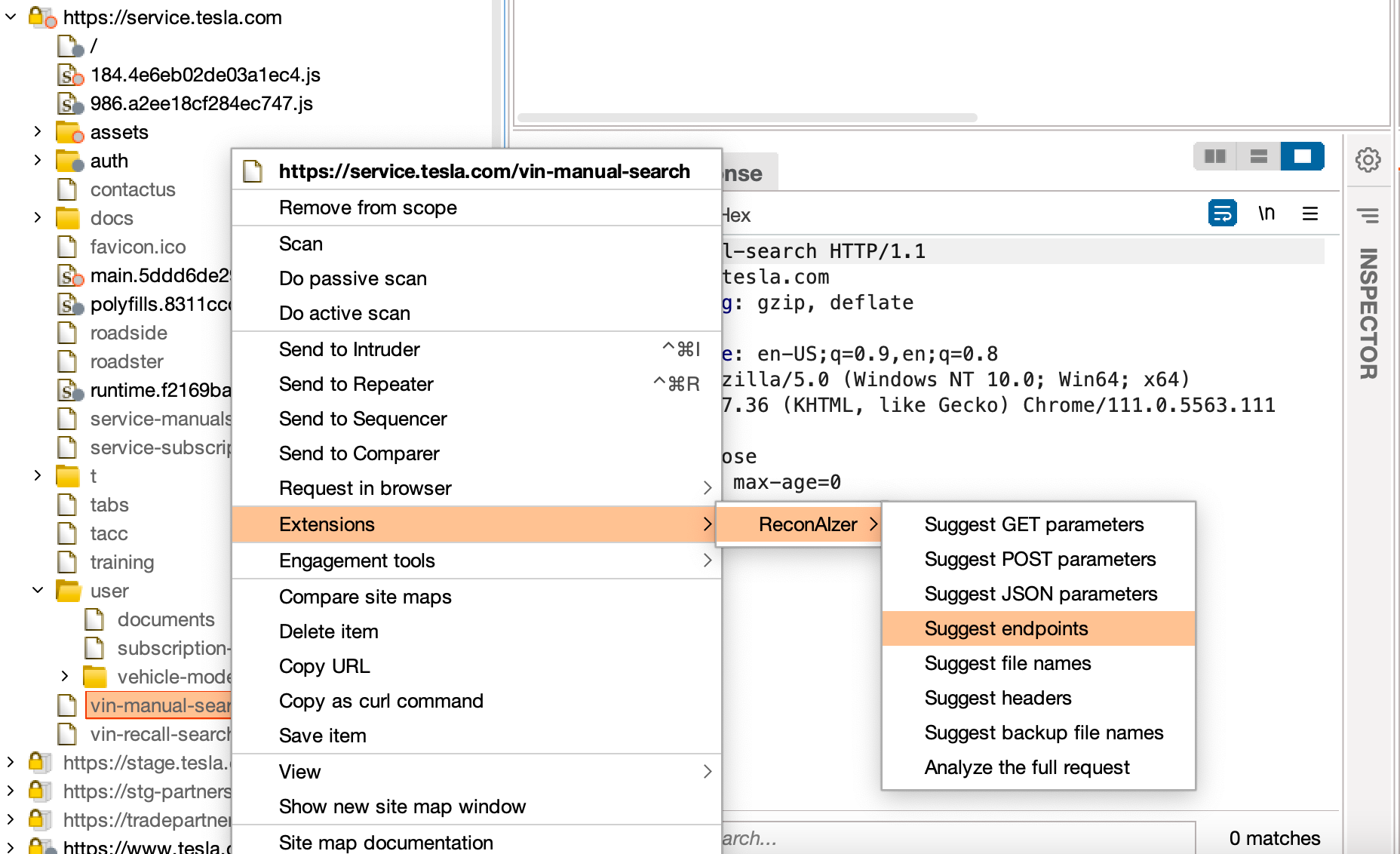
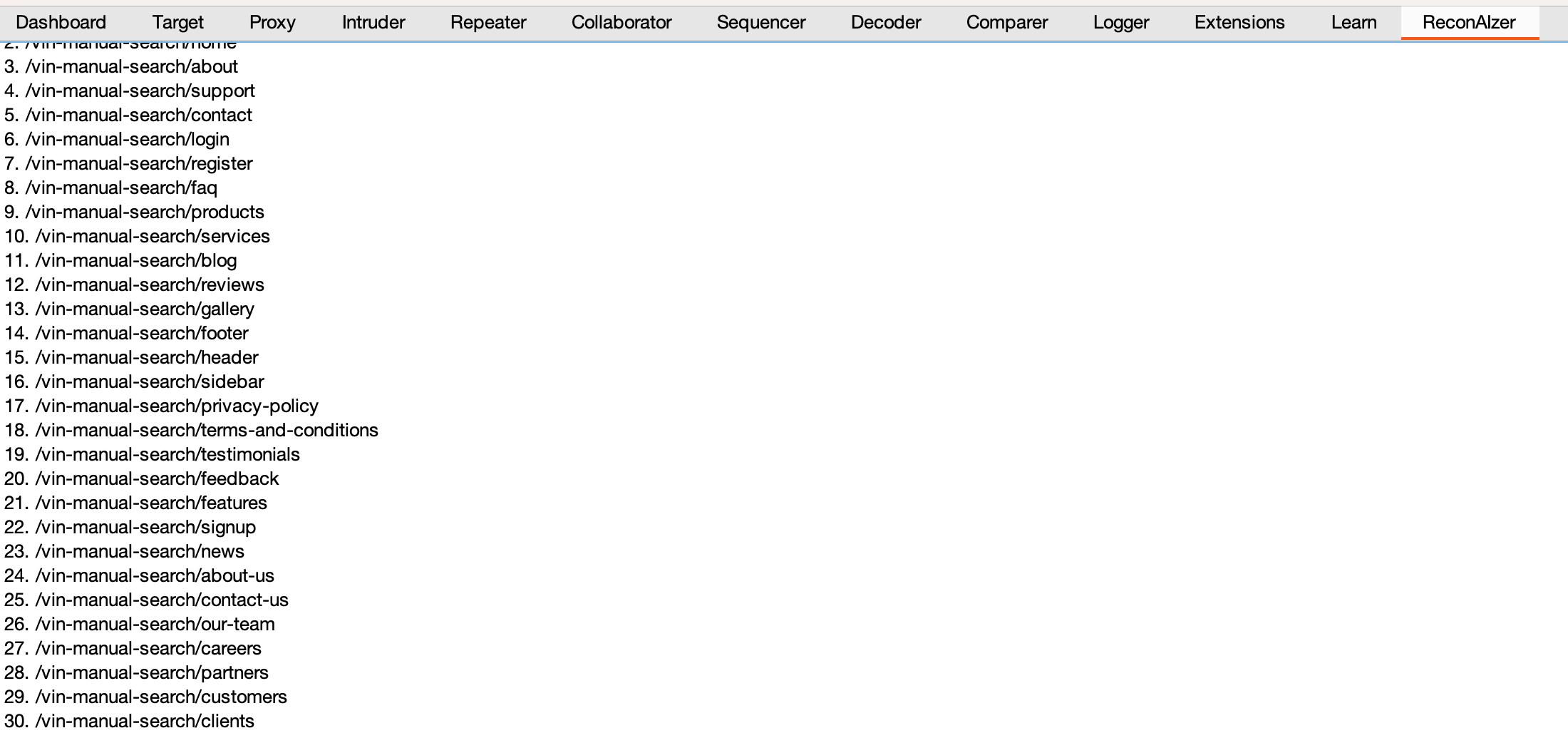
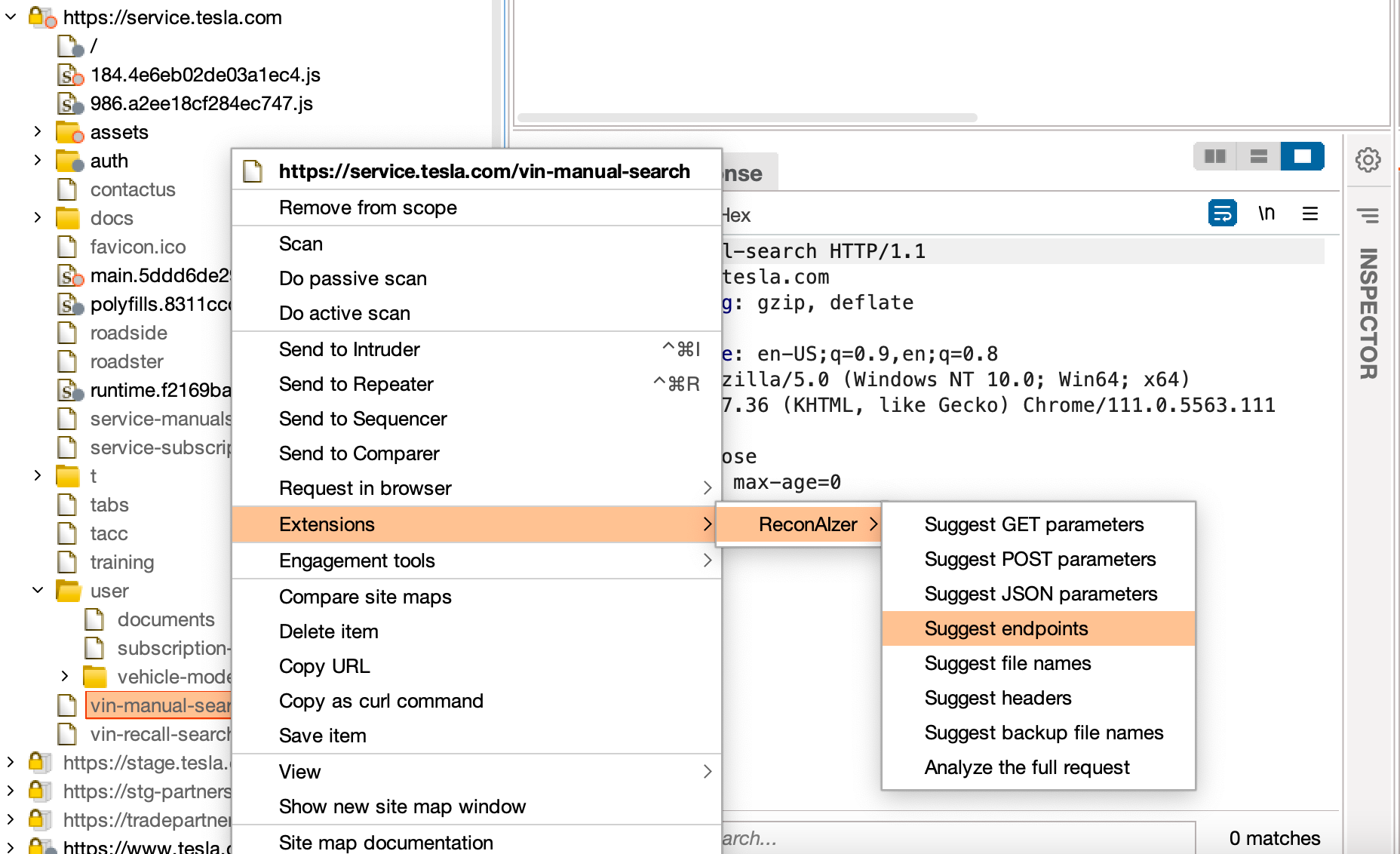
Once installed, ReconAIzer add a contextual menu and a dedicated tab to see the results:
Prerequisites
- Burp Suite
- Jython Standalone Jar
Installation
Follow these steps to install the ReconAIzer extension on Burp Suite:
Step 1: Download Jython
- Download the latest Jython Standalone Jar from the official website: https://www.jython.org/download
- Save the Jython Standalone Jar file in a convenient location on your computer.
- Open Burp Suite.
- Go to the "Extensions" tab.
- Click on the "Extensions settings" sub-tab.
- Under "Python Environment," click on the "Select file..." button next to "Location of the Jython standalone JAR file."
- Browse to the location where you saved the Jython Standalone Jar file in Step 1 and select it.
- Wait for the "Python Environment" status to change to "Jython (version x.x.x) successfully loaded," where x.x.x represents the Jython version.
Step 3: Download and Install ReconAIzer
- Download the latest release of ReconAIzer
- Open Burp Suite
- Go back to the "Extensions" tab in Burp Suite.
- Click the "Add" button.
- In the "Add extension" dialog, select "Python" as the "Extension type."
- Click on the "Select file..." button next to "Extension file" and browse to the location where you saved the
ReconAIzer.py file in Step 3.1. Select the file and click "Open."
- Make sure the "Load" checkbox is selected and click the "Next" button.
- Wait for the extension to be loaded. You should see a message in the "Output" section stating that the ReconAIzer extension has been successfully loaded.
Congratulations! You have successfully installed the ReconAIzer extension in Burp Suite. You can now start using it to enhance your bug bounty hunting experience.
Once it's done, you must configure your OpenAI API key on the "Config" tab under "ReconAIzer" tab.
Feel free to suggest prompts improvements or anything you would like to see on ReconAIzer!
Happy bug hunting!
 hisxo/reconaizer
