 felixber/findfunc
IDA Pro plugin for filtering functions by assembly patterns, byte sequences, string/name references, and size constraints, with rule-based search and advanced binary copying.

FindFunc is an IDA Pro plugin to find code functions that contain a certain assembly or byte pattern, reference a certain name or string, or conform to various other constraints.
FindFunc won third place in the 2022 HexRays IDA Pro Plugin Contest!
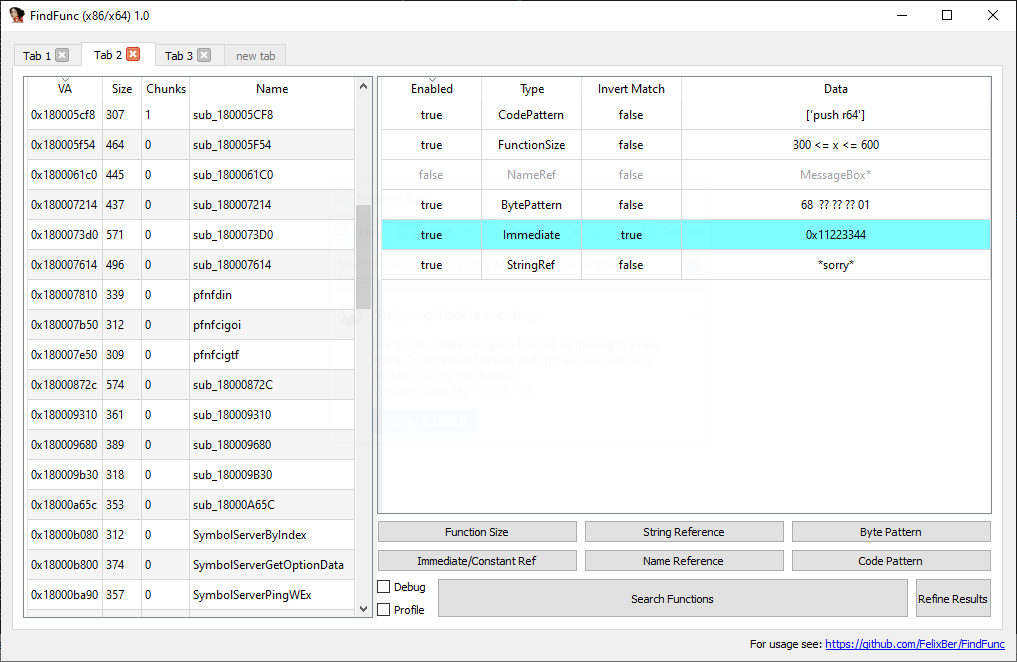
The main functionality of FindFunc is letting the user specify a set of "Rules" or constraints that a code function in IDA Pro has to satisfy. FF will then find and list all functions that satisfy ALL rules (so currently all Rules are in an AND-conjunction). Exception: Rules can be "inverted" to be negative matches. Such rules thus conform to "AND NOT".
FF will schedule the rules in a smart order to minimize processing time. Feature overview:
Button "Find Functions" clears existing results and starts a fresh search, "Refine Results" considers only results of the previous search.
A secondary feature of FF is the option to copy binary representation of instructions with the following options:
See "advanced copying" section below for details. This feature nicely complements the Byte Pattern rule!
FindFunc is an IDA Pro python plugin without external package dependencies. It can be installed by downloading the repository and copying file 'findfuncmain.py' and folder 'findfunc' to your IDA Pro plugin directory. For IDA 9.0+ the repository can also be cloned directly into the plugin directory. Either way no building is required.
Requirements: IDA Pro 8.x (8.3+) with python3 environment. FindFunc is designed for x86/x64 architecture only. It has been tested with IDA 8.3 - 9.2, python 3.11 on Windows 10 + 11
Currently the following six rules are available. They are sorted here from heavy to light with regard to performance impact. With large databases it is a good idea to first cut down the candidate-functions with a cheap rule, before doing heavy matching via e.g. Code Rules. FF will automatically schedule rules in a smart way.
Rule for filtering function based on them containing a given assembly code snippet. This is NOT a text-search for IDAs textual disassembly representation, but rather performs advanced matching of the underlying instruction. The snippet may contain many consecutive instructions, one per line. Function chunks are supported. Supports special wildcard matching, in addition to literal assembly:
more examples:
mov r64, [r32 * 8 + 0x100]
mov r, [r * 8 - 0x100]
mov r64, [r32 * 8 + imm]
pass
mov r, word [eax + r32 * 8 - 0x100]
any r64, r64
push imm
push any
Gotchas: Be careful when copying over assembly from IDA. IDA mingles local variable names and other information into the instruction which leads to matching failure. Also, labels are not supported ("call sub_123456").
Note that Code Patterns is the most expensive Rule, and if only Code Rules are present FF has no option but to disassemble the entire database. This can take up to several minutes for very large binaries. See notes on performance below.
The function must contain the given immediate at least once in any position. An immediate value is a value fixed in the binary representation of the instruction. Examples for instructions matching immediate value 0x100:
mov eax, 0x100
mov eax, [0x100]
and al, [eax + ebx*8 + 0x100]
push 0x100
Immediates can be pasted directly from clipboard into the list of rules. Note: IDA performs extensive matching of any size and any position of the immediate. If you know it to be of a specific width of 4 or 8 bytes, a byte pattern can be faster (but may produce false positives).
The function must contain the given byte pattern at least once. The pattern is of the same format as IDAs binary search, and thus supports wildcards - the perfect match for the advanced-copy feature!
Examples:
11 22 33 44 aa bb cc
11 22 33 ?? ?? bb cc -> ?? can be any byte
Byte-patterns can be pasted directly from clipboard into the list of rules. Note: Pattern matching is quiet fast and a good candidate to cut down matches quickly!
The function must reference the given string at least once. The string is matched according to pythons 'fnmatch' module, and thus supports wildcard-like matching. Matching is performed case-insensitive. Strings of the following formats are considered: [idaapi.STRTYPE_C, idaapi.STRTYPE_C_16] (this can be changed in the Config class).
Examples:
Note: String matching is fast and a good choice to cut down candidates quickly!
The function must reference the given name/label at least once. The name/label is matched according to pythons 'fnmatch' module, and thus supports wildcard-like matching. Matching is performed case-insensitive.
Examples:
Note: Name matching is very fast and ideal to cut down candidates quickly!
The size of the function must be within the given limit: "min <= functionsize <= max". Data is entered as a string of the form "min,max". The size of a function includes all of its chunks.
Note: Function size matching is very fast and ideal to cut down candidates quickly!
For ease of use FF can be used via the following keyboard shortcuts:
