 ryandfir/hindsight
Browser forensics tool for Google Chrome, other Chromium-based browsers, and Mozilla Firefox

 Hindsight
Internet history forensics for Google Chrome/Chromium and Mozilla Firefox
Hindsight is a free tool for analyzing web artifacts. It started with the browsing history of the Google Chrome web browser, has expanded to support other Chromium-based applications, and now also parses Mozilla Firefox profiles. Hindsight can parse a number of different types of web artifacts, including URLs, download history, cache records, bookmarks, autofill records, saved passwords, preferences, browser extensions, HTTP cookies, and Local Storage records (HTML5 cookies). Once the data is extracted from each file, it is correlated with data from other history files and placed in a timeline.
For Firefox profiles, Hindsight parses places.sqlite (history visits, bookmarks, and downloads), cookies.sqlite, and formhistory.sqlite. Select "Firefox" in the GUI or pass -b Firefox on the command line, pointing at a profile directory such as \[userdir]\AppData\Roaming\Mozilla\Firefox\Profiles\<profile>.
It has a simple web UI - to start it, run "hindsight_gui.py" (or on Windows, the packaged "hindsight_gui.exe") and visit http://localhost:8080 in a browser:
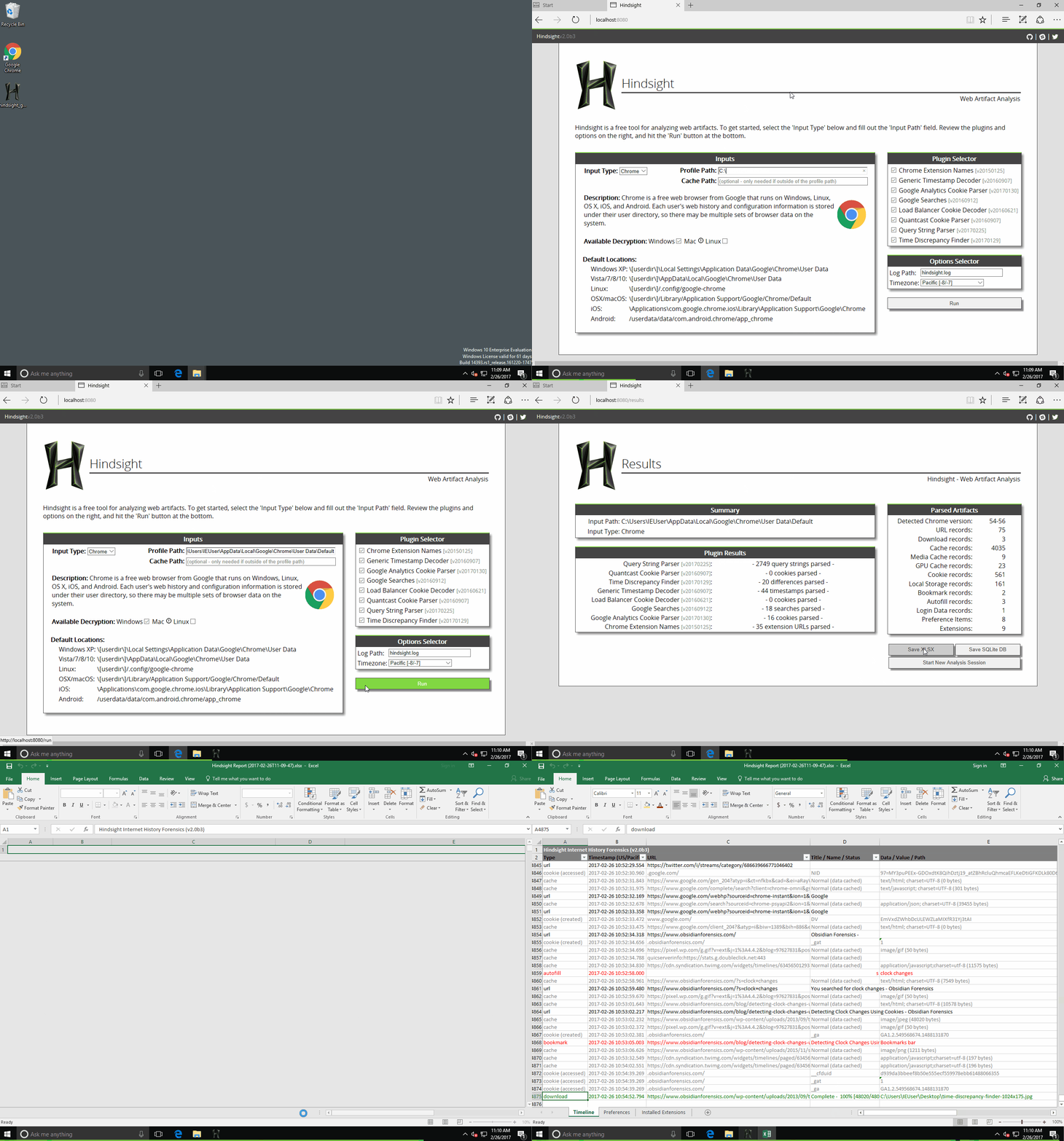
The only field you are required to complete is "Profile Path". This is the location of the Chrome profile you want to analyze (the default profile paths for different OSes is listed at the bottom of this page). Click "Run" and you'll be taken to the results page in where you can save the results to a spreadsheet (or other formats).
To install Hindsight (both the command line tool and the web interface), do:
pip install pyhindsight
pip install git+https://github.com/cclgroupltd/ccl_chromium_reader.git
If you'd like to use the "View SQLite DB in Browser" feature in the Hindsight web interface, you'll need to run another install command:
curl -sSL https://raw.githubusercontent.com/RyanDFIR/hindsight/main/install-js.sh | sh
There also is a command line version of Hindsight - hindsight.py or hindsight.exe. The user guide in the documentation folder covers many topics, but the info below should get you started with the command line version:
Example usage: > C:\hindsight.py -i "C:\Users\Ryan\AppData\Local\Google\Chrome\User Data\Default" -o test_case
Command Line Options:
| Option | Description |
|---|---|
| -i or --input | Path to a browser profile, or a parent directory to search recursively for profiles |
| -o or --output | Name of the output file (without extension) |
| -f or --format | Output format (default is XLSX, other options are SQLite and JSONL) |
| -c or --cache | Path to the cache directory; only needed if the directory is outside the given "input" directory. Mac systems are setup this way by default. |
| -b or --browser_type | Force one browser for every profile: Chrome, Edge, Brave, Vivaldi, Firefox or Tor (case-insensitive; Chromium is an alias for Chrome). Omit to auto-detect each profile. |
| -l or --log | Location Hindsight should log to (will append if exists) |
| --log-level | How much detail to write to the log: debug, info (the default), warning or error. Use debug when reporting a bug |
| -h or --help | Shows these options and the default Chrome data locations |
| -t or --timezone | Display timezone for the timestamps in XLSX output |
| --only or --artifacts | Only parse these artifacts (comma-separated; repeatable) |
| --skip or --exclude | Parse everything except these artifacts (comma-separated; repeatable) |
| --list-artifacts | Print the artifact names accepted by --only and --skip, then exit |
When the input contains profiles from several browsers, omit --browser_type to
let Hindsight detect each profile separately. Use the override only when you intend
to treat every discovered profile as the specified browser.
By default, Hindsight parses every artifact it finds. --only and --skip narrow that
down, which is useful for quick triage and for skipping the cache when it is large and
not relevant to the question at hand.
hindsight.py -i <profile> --only history,downloads
hindsight.py -i <profile> --skip cache
hindsight.py -i <profile> --only user-activity --skip sessions
Artifact names are browser-neutral: history selects Chrome's History URL records and
Firefox's places.sqlite URL records, so the same command works on either. Names are
case-insensitive, and spaces, underscores, and hyphens are interchangeable
(local-storage, local_storage, and "Local Storage" are the same name).
Group names can be used anywhere an artifact name can, and select everything under them:
user-activity, website-storage, browser-extensions, configuration, plus caches
(every cache artifact) and all. --only and --skip can be combined, with --skip
further narrowing --only.
Run hindsight.py --list-artifacts for the full list with descriptions and aliases.
An artifact excluded by a filter is reported as [ skipped ] during the run and noted in
the log, so a report that omits an artifact stays distinguishable from a profile that
never had it. An unrecognized name is an error rather than being ignored, so a typo can't
quietly produce a report covering the wrong artifacts.
Note that version detection still reads the profile's database schemas, so filtering does not change the detected browser version.
The Chrome default profile folder default locations are:
Please file an issue if you have an idea for a new feature (or spotted something broken).
See CONTRIBUTING.md for how to set up, run the two test suites, and get the browser profile corpus the end-to-end tests parse.
