Skip to content
KitploitKITPLOIT
ToolsExploitsBlog
Submit
ToolsExploitsBlog
Submit

Hacking, PenTest, and Cybersecurity Tools for Your Security Arsenal!

Kitploit is a directory of hacking, cybersecurity, and pentesting tools. Discover the latest project updates to find vulnerabilities, analyze systems, automate testing, and strengthen your security.

··Feeds·Contact·Privacy·© 2026 Kitploit

Tool Directory

Categories

View all categories
Loading categories
Converto — Installing Kali linux on Vps Server | Kitploit

Tools/GitHubGitHub/developerkunal/converto
Scripting & AutomationPenetration TestingRed TeamingRemote Access Tool
GitHubdeveloperkunal/converto

Converto

Installing Kali linux on Vps Server

View Repository
1175497 years agoReviewed by Kitploit
Website

Most Popular

View all →

Discover the most used tools by our community.

Explore all tools

Browse our collection of tools

View all tools →
Share

SensioLabs Insight SensioLabs Insight SensioLabs Insight

Converto V2

Automated Kali Linux or Parrot OS Installer for VPS

root@kitploit:~
                 ### Installing Kali linux or Parrot OS on VPS Server.###
                            ###     Tested on Ubuntu.   ###
                            ###     Tested on Debian.   ###
              ###   It also installs VNC (Graphical / Non-Graphical VNC).   ###

Steps For Installing :-

Video :- How to install

IMAGE ALT TEXT HERE

Download Tool

1.sudo apt-get update

2.sudo apt-get install git

3.git clone https://github.com/developerkunal/Converto.git

4.cd Converto.

5.chmod +x converto.sh
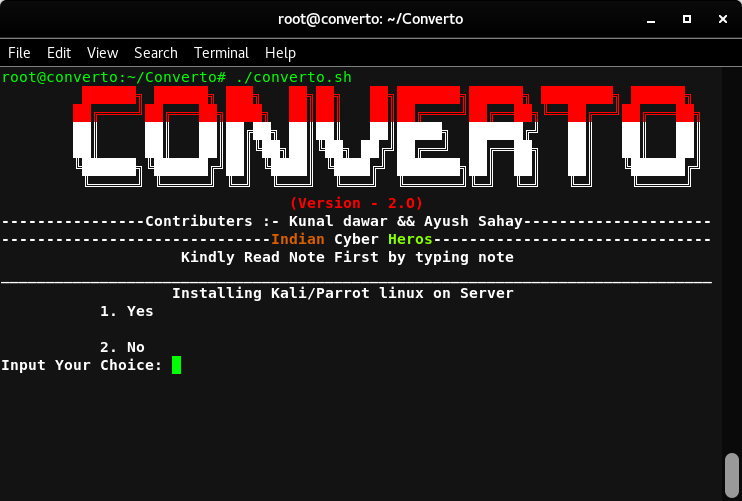
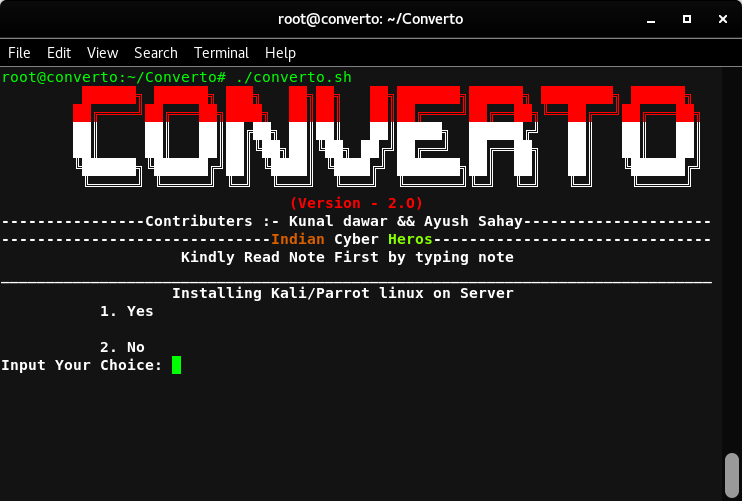
  1. ./converto.sh

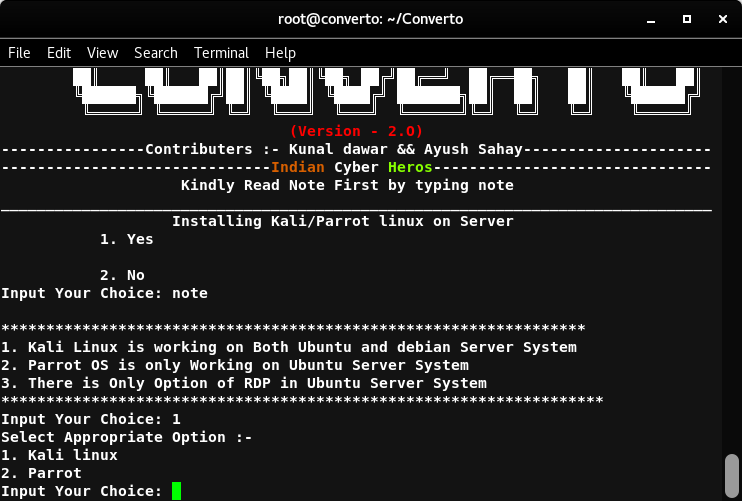
screenshot from 2018-03-15 19-16-47

  1. Type 1 For Install

    Type 2 For Exit

    Type note For Reading Note(Recommended)
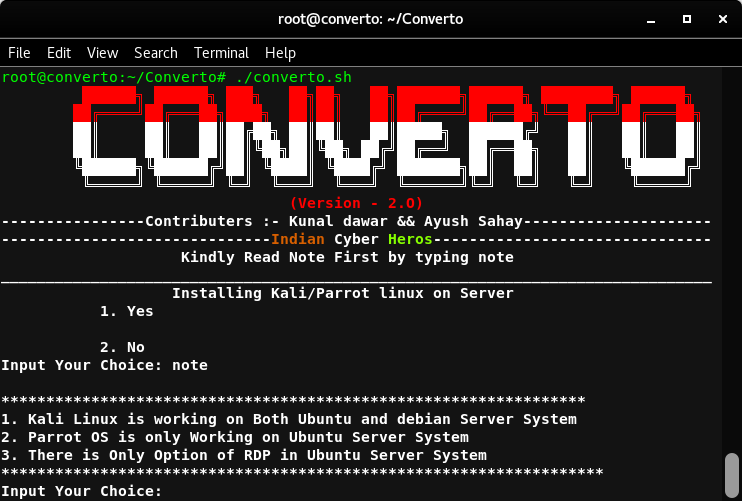
    screenshot from 2018-03-15 19-21-53

  2. Press 1 and Enter

screenshot from 2018-03-15 19-23-38

  1. Now choose the desired option.

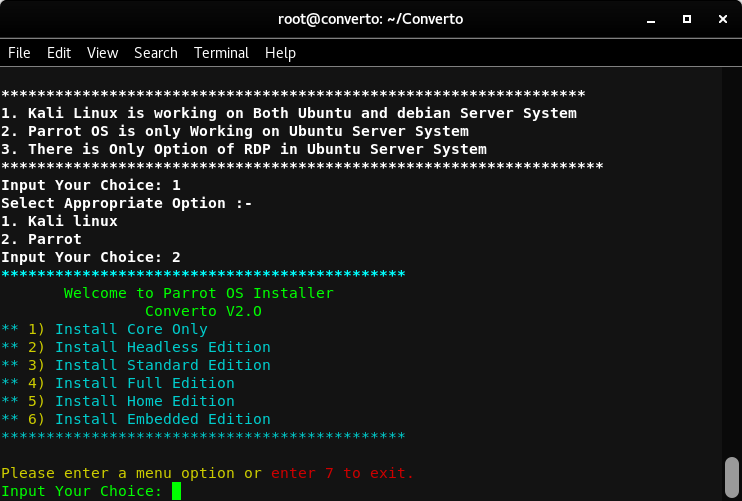
screenshot from 2018-03-15 19-23-38

  1. I am Selecting 2 for Parrot OS.

screenshot from 2018-03-15 19-24-48

  1. Now choose the desired option.

** 1) Install Core Only

** 2) Install Headless Edition

** 3) Install Standard Edition

** 4) Install Full Edition

** 5) Install Home Edition

** 6) Install Embedded Edition
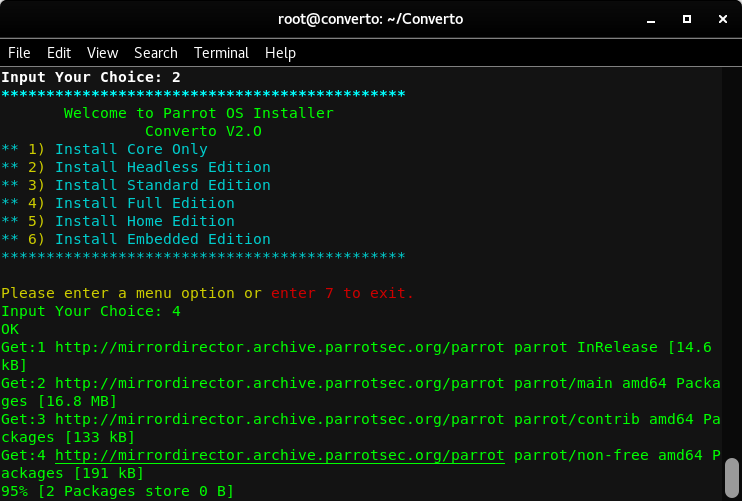
  1. Selecting 4 For Full installation

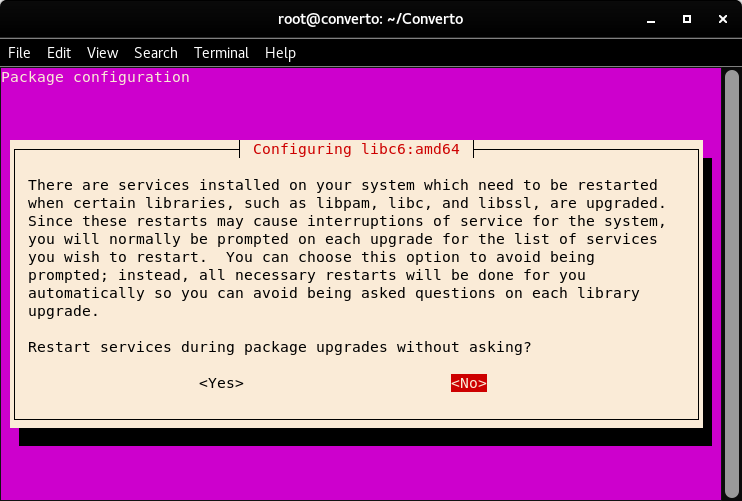
screenshot from 2018-03-15 19-31-25

  1. Select Yes.(Necessary)

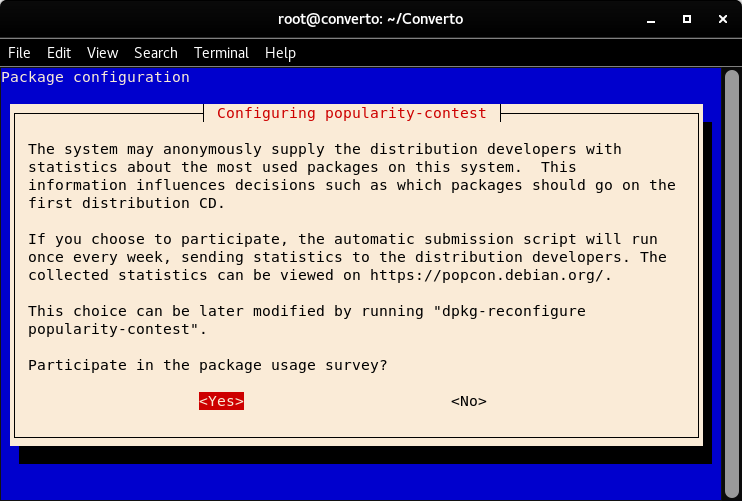
screenshot from 2018-03-15 19-33-23

  1. Select Yes.(Necessary)

screenshot from 2018-03-15 19-46-04

  1. Type Y and Press Enter.(Necessary)

screenshot from 2018-03-15 19-47-07

  1. Type Y and Press Enter.(Necessary)

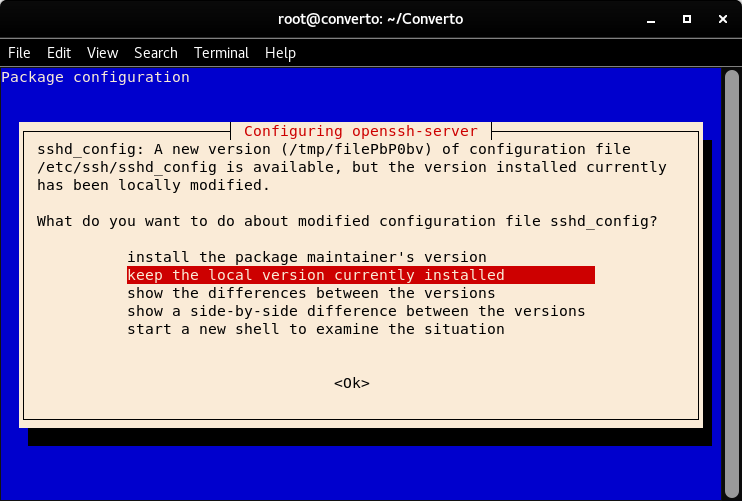
screenshot from 2018-03-15 19-56-42

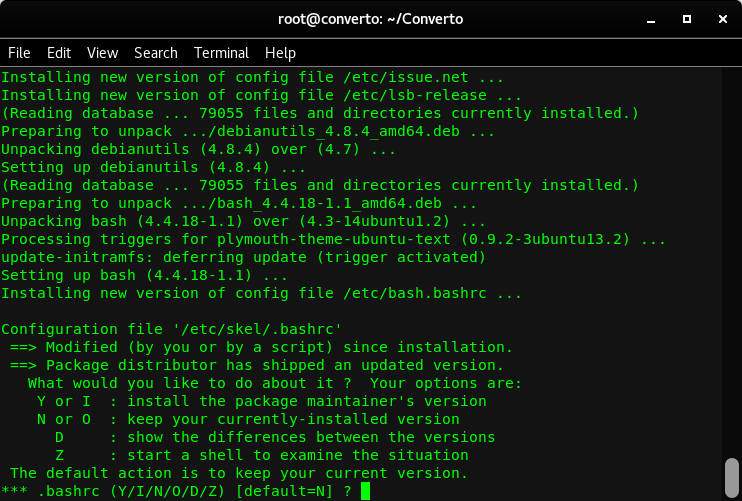
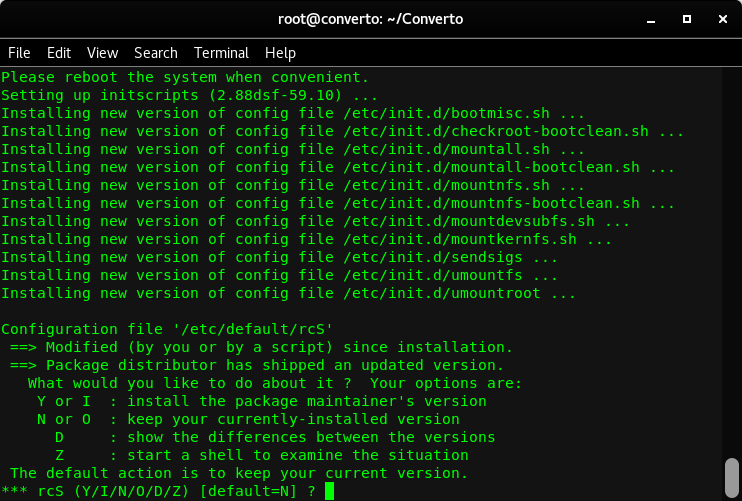
  1. Select install the package maintainer's version.

screenshot from 2018-03-15 19-58-38

Installation Done....

screenshot from 2018-03-15 20-12-55

Optional Step for installing VNC.

screenshot from 2018-03-10 01-25-08

Steps :-

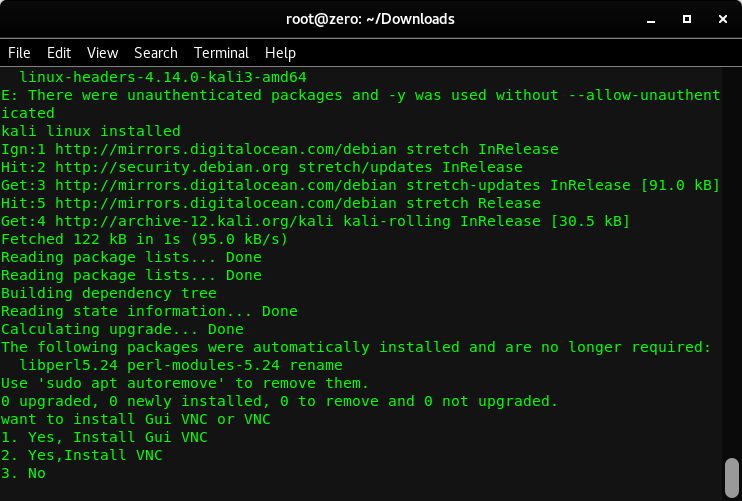
  1. Choose You VNC Type you want to install (Graphical VNC Recommended)

screenshot from 2018-03-10 01-35-30

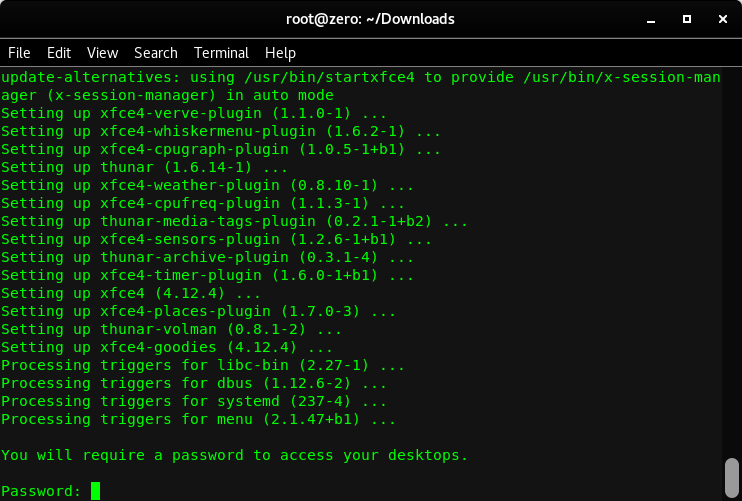
  1. Now Enter The Password for the VNC Connection and also re-enter the password for verification.

screenshot from 2018-03-10 01-37-29

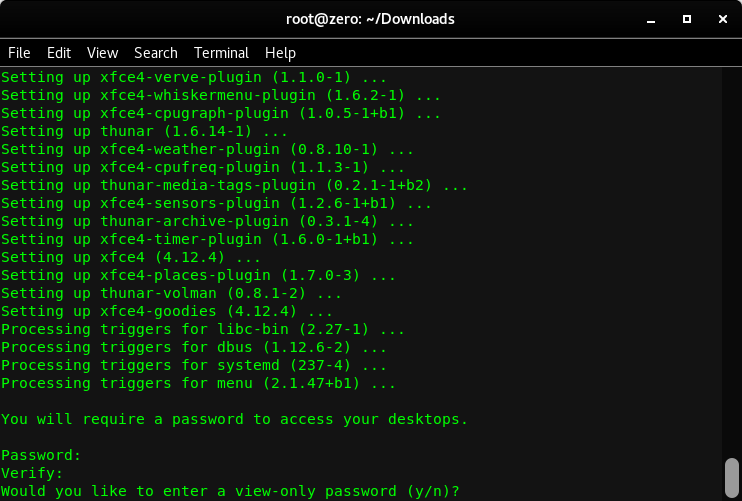
  1. Optional : Press Y if you want a view only password (In view only password, The one having the password will only have the permission to view the screen.)

Commands to Start and Stop The VNC Server

TO start a VNC Server

root@kali:~# vncserver

(It always start on Port 1)

To stop a VNC Server

root@kali:~# vncserver -kill :1

Example IP in VNC Viewer : 127.0.0.1:1

Credits : Kunal dawar, Ayush sahay.